Share models and diagrams with other people
Before you start: Something saved — a model, diagram, or analysis.
An analysis nobody sees doesn't change a maintenance decision. Reliafy has three ways to get your work in front of other people, and they suit genuinely different situations.
A public link — for people who don't have Reliafy
Open any saved model, diagram, or analysis, open the ⋯ menu at the top right of the page and choose Share. Under Public links, give the link a label if you like ("for the client"), choose when it Expires, and press Create public link. You get a URL that anyone can open, with no account and no sign-in, showing a read-only view of the result, with the analyses it relies on.
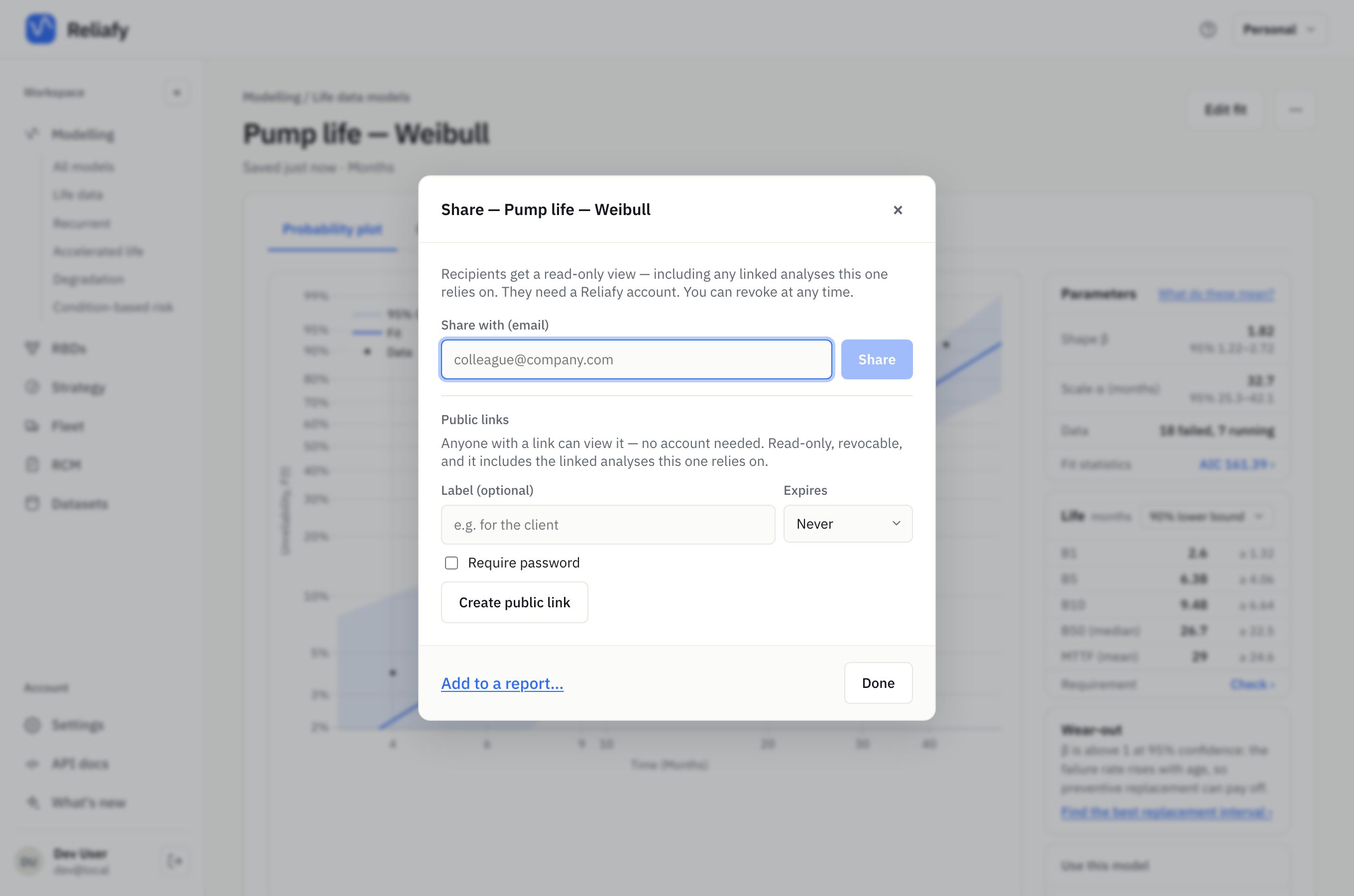
This is the right choice for a contractor, a vendor, a regulator, or a manager who is never going to create an account. It's also the answer to "can you send me the report" — the link is the report, and unlike a PDF it doesn't go stale in someone's inbox: reopen it later and it reflects the current state of the analysis.
Treat the URL as the access control. Anyone holding it can view, so share it as deliberately as you'd share the file itself. For something sensitive, tick Require password and type one, or leave it blank and Reliafy makes one and shows it once. Send the password separately from the link (the link by email, the password by message). Each link can be revoked on its own, and you can make several, one per audience.
Several items on one page: a report
When the story needs more than one item — the fitted model, the diagram built on it and the replacement interval that follows — put them in one report. In the Share dialog, choose Add to a report… at the bottom. Give the report a Title and an Author or organisation, write an Introduction, and add the other items under Sections with Add an item, each with an optional note. Reorder them with the arrows, then Save report.
Nothing is public until you create a link: once the report is saved, the same Create public link controls appear under it, and the page is laid out ready to print. Draft notes has the assistant word the introduction from the items' saved figures (it uses AI credits); read it through before publishing, and it flags any figure it can't find in the saved results.
Sharing with a named person — for a specific colleague
In the same dialog, Share with (email) shares that one artifact with someone by email address. They see it, view-only, inside their own Reliafy account.
This suits the one-off: a colleague who needs to review your bearing model, but who shouldn't be pulled into your whole workspace. If they don't have an account yet, creating one with that email address picks up the share automatically.
A team workspace — for people you work with continuously
The other two are for showing finished work. A team is for doing work together.
Create one from the workspace switcher at the top right (+ New team…), and everything created inside it belongs to the team rather than to you — datasets, models, diagrams, studies. Members see it all, and the switcher moves you between your personal workspace and any teams you belong to.
Invite people from the team's settings by email address. They join when they accept the invitation, signed in with that address (the invitation waits in their Settings, and in a new account made with that address); until then you see the address and "Pending".
This is what you want when reliability is a shared responsibility: the models outlive whoever built them, and the person covering next month doesn't have to ask you to re-send anything.
A note on plans: creating a team and editing team content needs Pro, but invited members can view team content on a free account. So a Pro engineer can bring in as many reviewers as they like without everyone needing a plan. Work as a team walks through creating a team, inviting people and what each member can do.
Copying an ID
Every saved artifact has an ID: ⋯ → Copy ID on its page copies it. That's what you use with the API or the Python client to fetch a specific model programmatically — useful when you're pulling results into a notebook, a report, or another system. Use Reliafy from scripts walks through it.
Which one to use
Roughly:
- Public link — someone outside your organisation, or anyone who won't sign in.
- Direct share — one named colleague, one artifact, view-only.
- Team — ongoing shared ownership of a body of work.
Public links and direct shares are both read-only. If you want someone to edit, that's a team.