Work as a team: create a team and invite people
Before you start: A Pro plan to create a team. The people you invite can join on a free account.
A team is a shared workspace. Everything made inside it belongs to the team rather than to one person: datasets, models, diagrams, strategy analyses, fleets and RCM studies. Everyone in the team sees all of it, so the work outlives whoever built it, and the person covering next month doesn't have to ask anyone to send anything.
Your personal workspace stays private. You move between it and your teams with the workspace menu at the top right.
If you only want to show one finished result to someone, a team is more than you need: send a share link instead (see sharing your work).
Create a team
Open the workspace menu at the top right (it reads Personal) and choose + New team…. Give it a Team name and press Create team. Reliafy switches you into the new team's workspace and opens its settings.
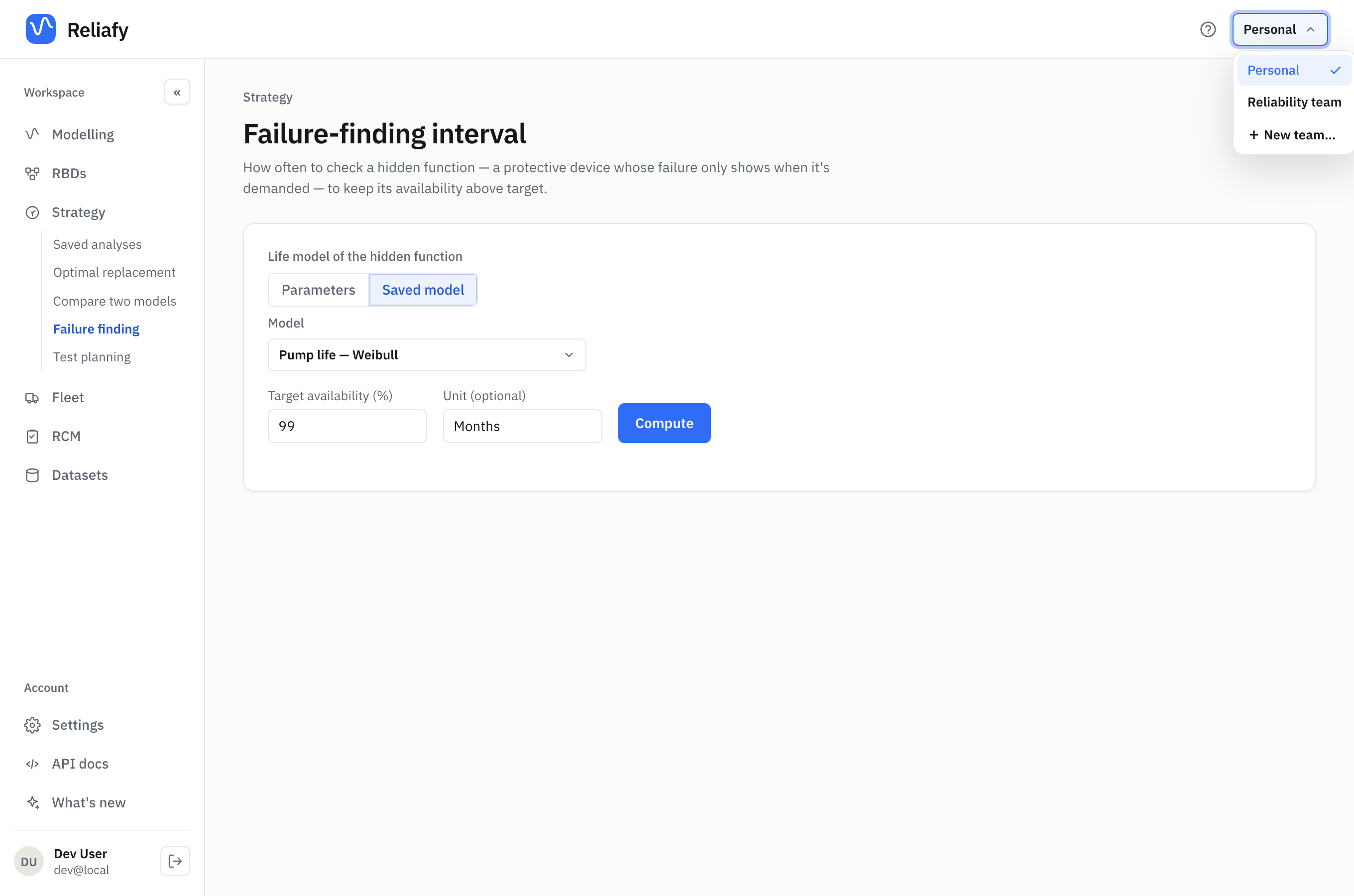
Creating a team needs a Pro plan. On the Free plan the dialog says so and offers the upgrade instead.
The team page, opened while you're in your personal workspace, also offers Create a team, and switches you into any team you already belong to.
Invite people
In the team's settings (the gear beside the workspace menu), type a colleague's address under Invite by email and press Invite.
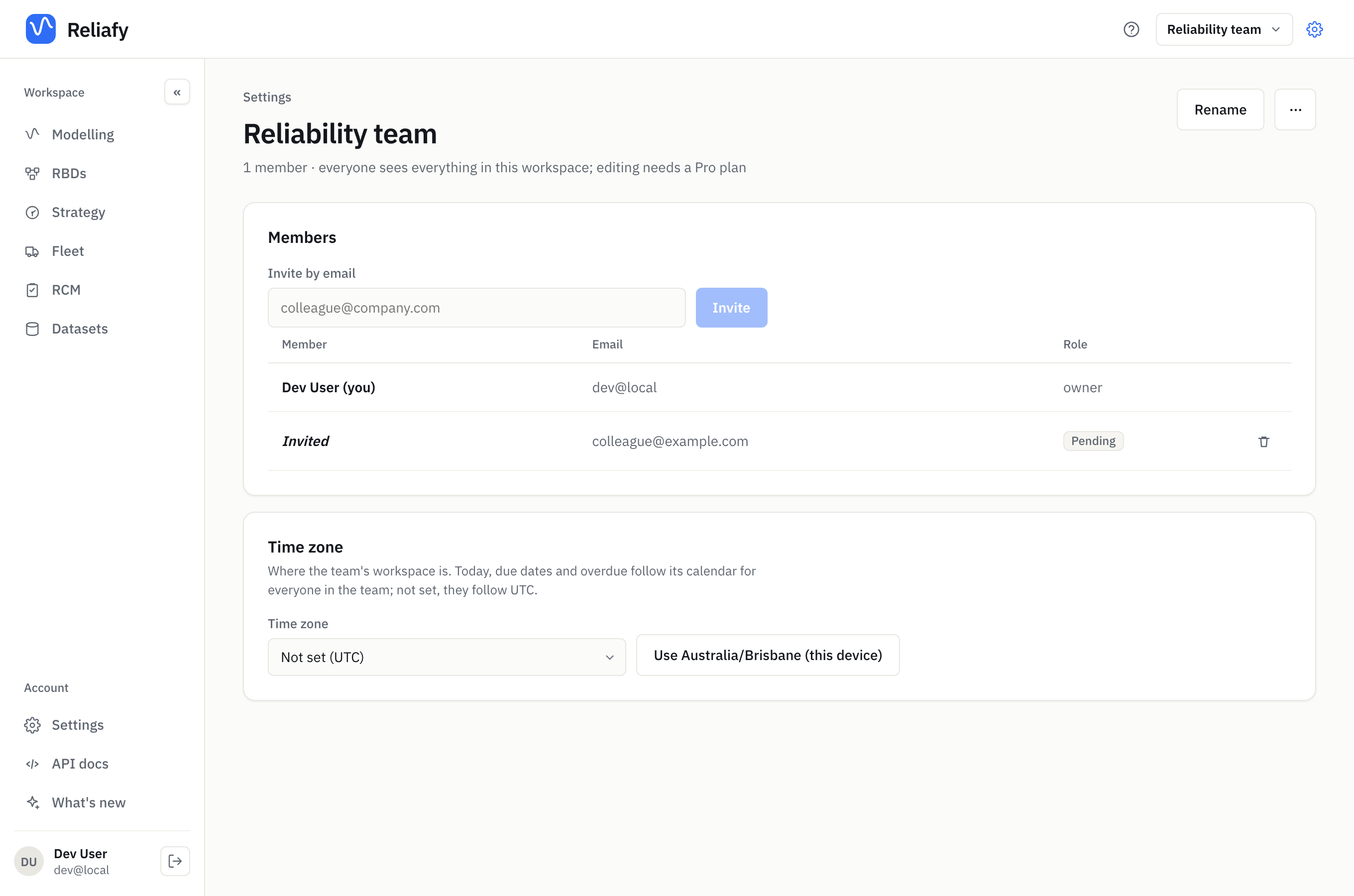
The invitation shows as Pending until they accept it. They get an email, and a Team invitation chip appears at the top of Reliafy when they sign in with that address. They accept or decline under Settings. If they don't have an account yet, the invitation waits for one made with that address.
Nobody joins a team without accepting. An invitation only works for the address it was sent to, and that address must be verified. To withdraw an invitation before it's accepted, press the bin on its row.
Roles: owner and member
A team has two roles.
| Owner | Member | |
|---|---|---|
| See everything in the team workspace | Yes | Yes |
| Create and edit in the team workspace | Yes | With their own Pro plan |
| Invite people, cancel invitations | Yes | No |
| Remove members | Yes | No |
| Rename the team, set its time zone | Yes | No |
| Leave the team | No (delete it instead) | Yes |
| Delete the team | Yes | No |
The person who creates the team is its owner.
Editing needs Pro; viewing doesn't. A member on a free account can open everything in the team, but not change it. Their row in the member list shows a View only chip, and so does the top of the page while they're in the team. So a Pro engineer can bring in reviewers without everyone needing a plan.
If the owner's Pro plan lapses, the whole team becomes read-only for everyone until it's renewed. Nothing is deleted.
Work in the team
Switch to the team in the workspace menu. Every list and page now shows the team's work, not your own, and the samples aren't listed there. Anything you create there belongs to the team.
Things a team does differently from your personal workspace:
- No share button. Team items are already shared with the team. To publish a read-only link for someone outside it, make the item in your personal workspace.
- Who changed what. Pages such as an RCM study say who edited them last. If two people edit the same study at once, the second save is refused rather than overwriting the first, and offers to reload the latest version.
- What changed. The What changed panel on the Modelling home, and its See all changes page, list what changed in the workspace over the last 30 days, the last 7 days or since your last visit: new and edited items with who edited them, refits whose answer moved, forecasts that moved, alerts that fired, and RCM evidence that changed. Each figure comes from what Reliafy stores; nothing is estimated.
- Time zone. The owner sets the team's Time zone in its settings, so "today" means the same day for everyone in the team. Not set, it's UTC.
Your personal items don't move into a team. To use one there, rebuild it in the team workspace; for a model, fit it again from its dataset.
Leave, remove or delete
- Leave a team: in its settings, open the ⋯ menu and choose Leave team. You lose access to its workspace; nothing in it is deleted.
- Remove a member: the owner presses the bin on their row.
- Delete the team: the owner opens the ⋯ menu, chooses Delete team, and types the team's name to confirm. This permanently deletes the team and every item in its workspace, for all members. It can't be undone.
Where to go next
For the other ways to show work to people (a public link, or one item shared with a named person), see sharing your work.
A team workspace suits work that lasts: an RCM study several engineers maintain, or a fleet forecast the whole reliability group checks each month.