Run an RCM study with every decision backed by evidence
Before you start: A system to study. Fitted models or saved strategy analyses to cite help, but you can start without them.
Reliability-centred maintenance (RCM) asks one question per failure mode: what should we do about this? The answer might be a scheduled replacement, a condition check, a proof test, a redesign, or nothing at all. The trouble with most RCM worksheets is that the answer is an opinion in a cell. Nobody can see the analysis behind it, and nobody notices when the data change.
An RCM study in Reliafy keeps the usual worksheet, but each decision can link to the analysis that justifies it: a life model, a degradation model or a saved strategy analysis. Reliafy checks the link every time you open the study, and marks each decision Supported, Contradicted or Inconclusive.
Start from the sample
Open RCM in the sidebar. The list shows the sample Delivery truck — RCM demo, with its evidence summarised as chips: 3 supported, 1 contradicted. Open it to see a finished study.
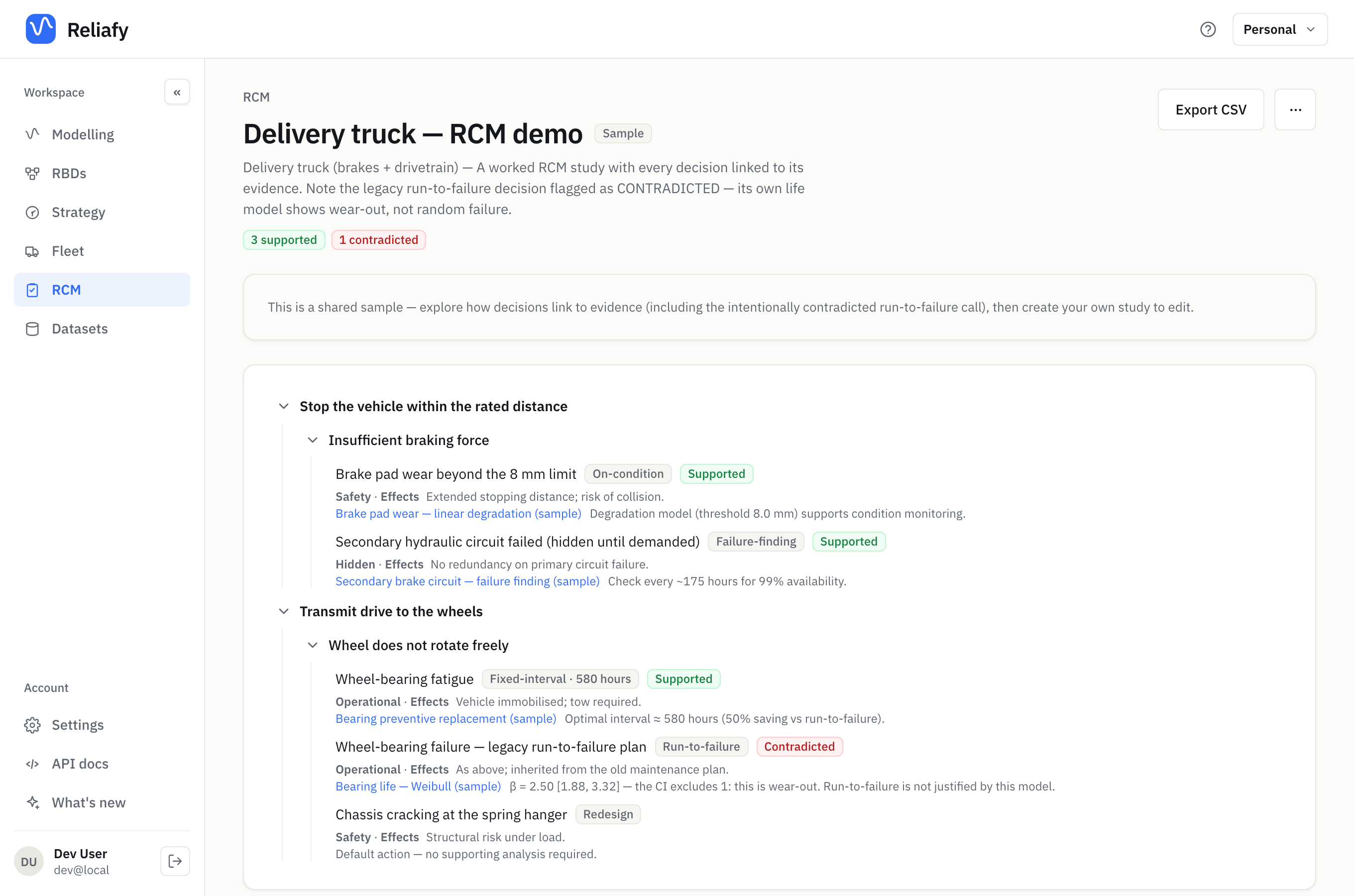
The worksheet is a tree, three levels deep:
- Function — what the system must do, ideally with a standard: Stop the vehicle within the rated distance.
- Functional failure — how it fails to do it: Insufficient braking force.
- Failure mode — what causes that failure: Brake pad wear beyond the 8 mm limit.
Each failure mode carries its consequence, its effects, and a decision chip such as Fixed-interval · 580 hours. Beside the chip is the evidence status. Under it is a link to the evidence and one line saying what it shows, for example Optimal interval ≈ 580 hours (50% saving vs run-to-failure).
One decision in the sample is red on purpose. The old maintenance plan ran the wheel bearings to failure, on the grounds that bearing failures are random. The linked bearing model says otherwise: β = 2.50 [1.88, 3.32] — the CI excludes 1: this is wear-out. That's the point of linking evidence. The worksheet says what was decided; the check says whether the data still agree.
The sample is read-only. To work on your own, create a study.
Create a study
On the RCM page, press New study. Give it a Name, and optionally the System it covers and a Description of the scope, operating context and assumptions. Press Create study and the empty worksheet opens.
Build the tree from the bottom of the worksheet:
- + Function adds a function. Type what it must do and press Enter.
- Under it, + Functional failure adds a way it can fail.
- Under that, + Failure mode adds a cause. Add one per cause.
Click the pencil beside any line to change its text, or the bin to delete it. Nothing is stored until you press Save study at the top right. Until then the page shows an Unsaved chip.
On the Free plan you can keep one RCM study. Pro has no limit.
Or import an existing worksheet
If your FMEA or RCM worksheet already lives in Excel, press Import from Excel on the RCM page instead. Drop the workbook in, pick the sheet, and map its columns: Function, Functional failure, Failure mode, Effects, Consequence, Decision / task type, Task, Interval and Interval unit. Only Failure mode is required. Blank function and failure cells carry down from the row above, as most worksheets expect.
Reliafy lists the distinct values it finds in the consequence and decision columns, guesses what each means, and lets you correct any guess. Other columns, such as severity, occurrence and RPN, can be kept in each mode's notes. The Result line counts what will be created before you press Create study.
To add a worksheet to a study you already have, use Import from Excel in the study's ⋯ menu. Append adds the imported rows after the existing ones; Replace swaps the whole worksheet, and asks you to confirm first.
Make a decision for each failure mode
Click + Decision beside a failure mode. The dialog walks through the classic RCM decision logic in three steps.
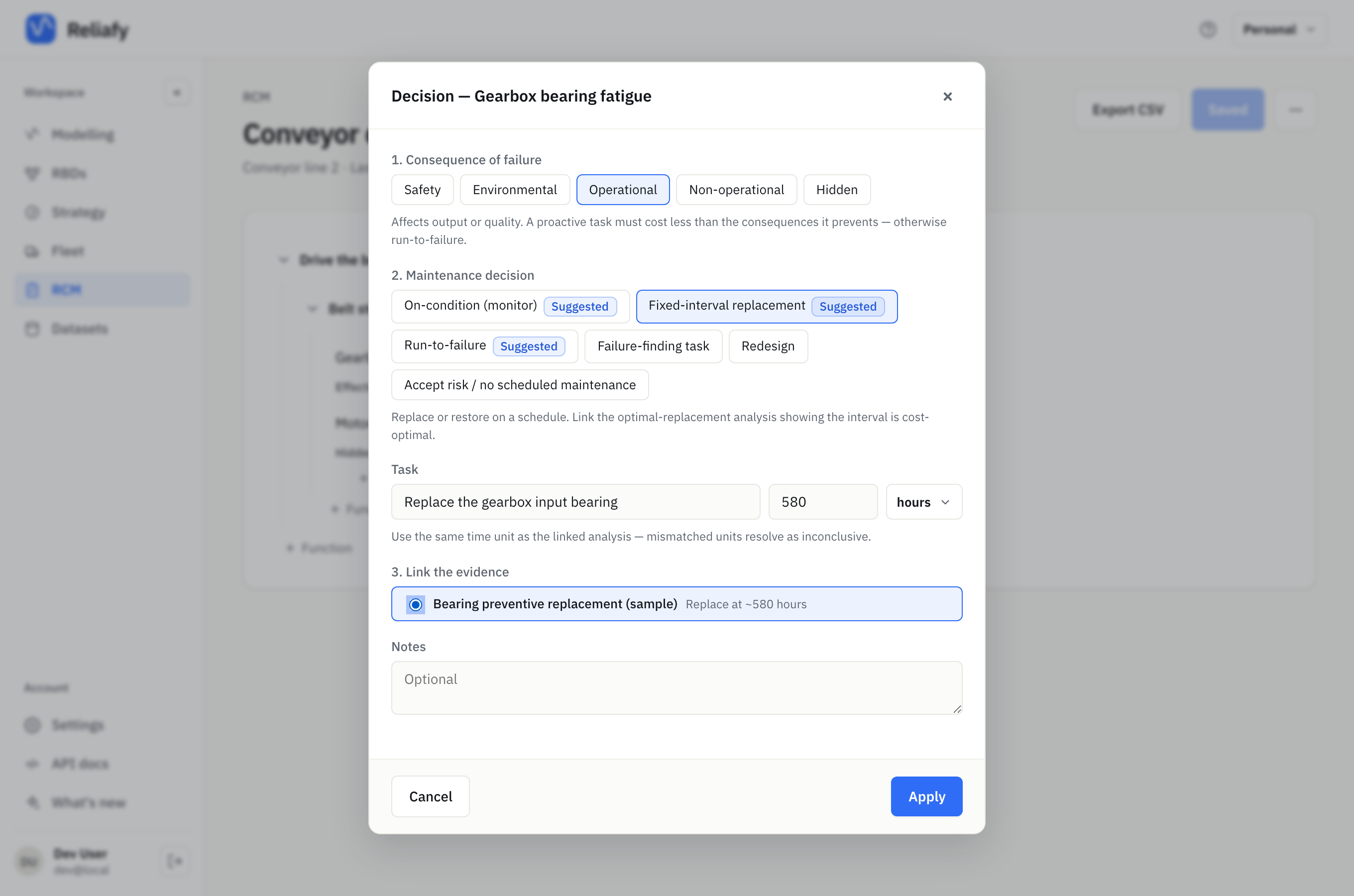
1. Consequence of failure. Choose Safety, Environmental, Operational, Non-operational or Hidden. A hidden failure is one you can't see in normal operation, like a trip that won't trip until it's needed. Each choice shows the rule it implies. For Operational: a proactive task must cost less than the consequences it prevents, or the answer is run-to-failure.
2. Maintenance decision. The decisions that suit that consequence are tagged Suggested and listed first:
| Decision | Evidence it expects |
|---|---|
| On-condition (monitor) | A degradation model that shows the failure develops measurably |
| Fixed-interval replacement | A saved optimal-replacement analysis with a worthwhile interval |
| Run-to-failure — failures are random | A Weibull fit whose β interval contains 1, or an exponential fit |
| Run-to-failure — prevention isn't economic | A saved optimal-replacement analysis that finds no worthwhile interval |
| Failure-finding task | A saved failure-finding analysis |
| Redesign | None. Write the reason in Notes |
| Accept risk / no scheduled maintenance | None. Write the reason in Notes |
For a scheduled task, describe it under Task and give the interval and its unit. Use the same unit as the analysis you link. If the units disagree, the decision is marked inconclusive rather than converted.
3. Link the evidence. The dialog lists only the evidence the decision expects: your life models with their β verdicts, your degradation models, or your saved analyses of the right kind. Pick one and press Apply. Then press Save study.
In the example, the gearbox bearing's Fixed-interval replacement every 580 hours links to the bearing replacement analysis. After saving, it reads Supported: Optimal interval ≈ 580 hours (50% saving vs run-to-failure).
If the evidence you need doesn't exist yet, the dialog says what to make, for example No saved failure-finding analyses (run the Strategy tool and save it). Make it, then come back. A saved analysis comes from the Strategy tools: run optimal replacement or a failure-finding interval, then press Save analysis.
Read the evidence status
Each decision shows one of these:
- Supported — the evidence agrees with the decision.
- Contradicted — the evidence points the other way. A run-to-failure decision linked to a wear-out model is the common case.
- Inconclusive — the evidence can't decide it. The line underneath says why: the wrong kind of analysis, mismatched units, or a fit with no confidence interval.
- No evidence — the decision expects evidence and none is linked yet.
- Stale link — the linked analysis has been deleted.
Redesign and accept-risk decisions need no evidence, so they show no status.
The chips under the study's title count the statuses for the whole study, and the RCM list shows the same counts for every study. A study with no red and no amber is one whose every decision you can defend.
The check runs again every time the study opens. Refit a linked life model with new failures and the status follows the new fit. A decision that was supported last quarter can turn red this quarter, and the study tells you.
Use the decisions elsewhere
- Export CSV at the top of the study downloads the worksheet, one row per failure mode, with each decision's evidence and status.
- Share in the ⋯ menu publishes a read-only page of the study, with its evidence links. See sharing your work.
- In a repairable reliability block diagram, double-click a block, open Maintenance, and choose Fill from RCM study…. Pick the study and a failure mode. A fixed-interval replacement fills the block's scheduled replacement; a failure-finding task fills its proof test. The interval comes from the task, or from its linked analysis if the task has none. The block isn't kept in sync: later changes to the study don't update it.
Where to go next
The two analyses most RCM decisions cite have their own guides: find the optimal replacement interval and set a failure-finding interval. On-condition decisions cite a degradation model; see predict failure from condition measurements.
To work on a study with colleagues, create it in a team workspace. Everyone in the team can open it, and the study shows who edited it last.